
Stock Phantom Inventory
Count kits and their components in one inventory. The module explodes multi-level kit BoMs and adjusts only the real components.
❌ The Problem
In standard Odoo, a physical count is compared directly with book stock. A kit (a product with a BoM of type Kit) holds no stock of its own, so when you count prepared dishes or pre-assembled kits, Odoo does not see the components inside them. The result is false shortages, valuation discrepancies, and Manufacturing Orders created only to balance the stock.
✅ The Solution
You enter the counted quantity of each kit next to the loose components. The module explodes the kit BoMs (up to 10 levels deep), adds the components found inside the kits to the shelf count, and compares the result with book stock. This separates normal production usage from real waste or theft.
Key Features
Multi-Level Kit Explosion
Explodes nested kit BoMs up to 10 levels deep and calculates how much of each component is inside the counted kits.
Shelf + Kit Totals
Adds the quantity found on the shelves to the quantity inside the kits and shows the real difference against book stock, in quantity and value.
XLSX Reconciliation Statement
One-click export to Excel with book stock, physical count, quantities inside kits, shortage and surplus.
Example: A Restaurant Kitchen
At the end of a shift, the kitchen has 20 prepared portions of Tom Yum Seafood. Here is how the module counts the prawns and shallots inside them.
Nested Kit BoMs
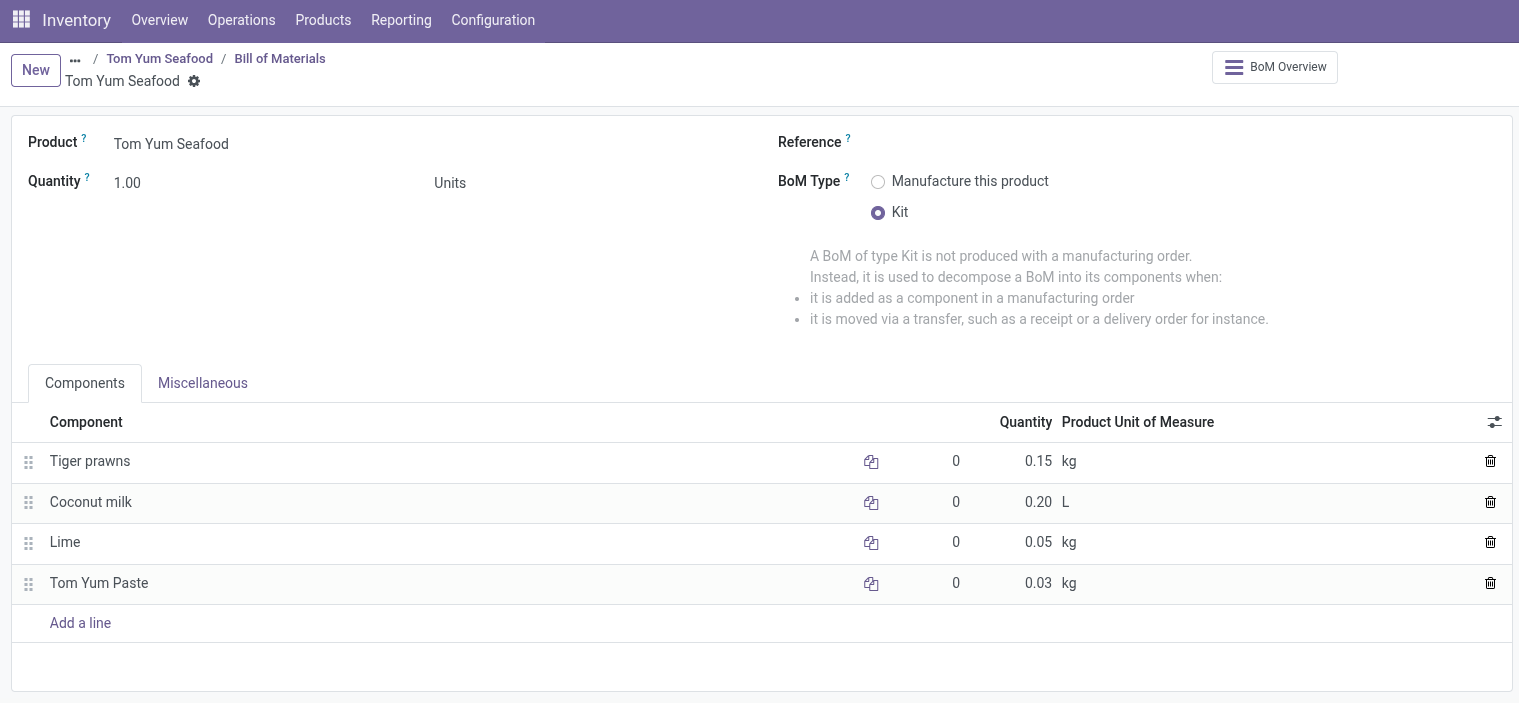
1. Tom Yum Seafood (kit, finished dish)
1 Unit contains 0.15 kg of Tiger prawns, 0.03 kg of Tom Yum Paste and 0.20 L of Coconut milk.
 🔍 Click to enlarge
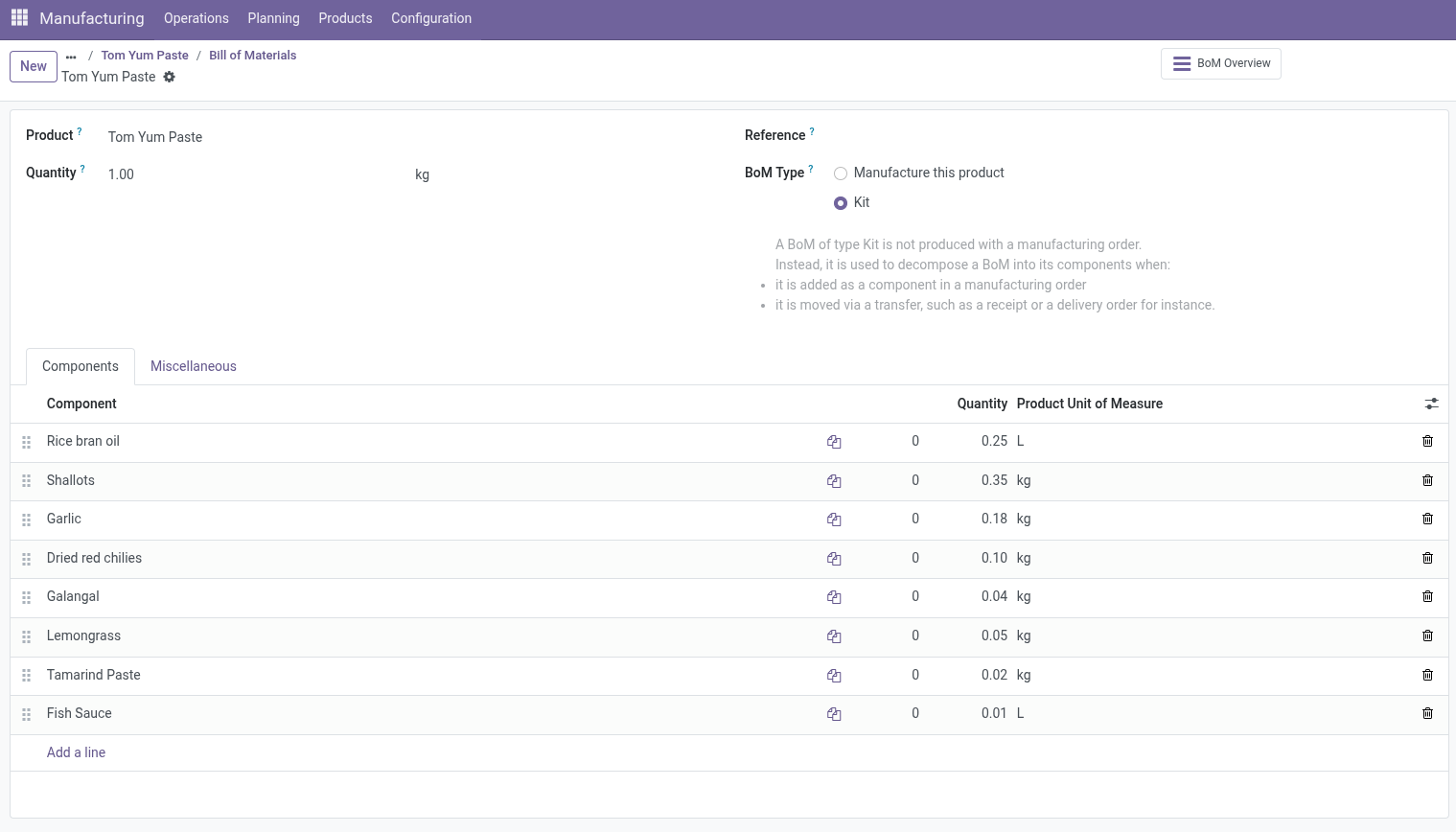
Stock Before the Count
After Compute Data, Actual Quantity is pre-filled with book stock. Kits have no stock, nothing is counted inside finished products yet, and every difference is 0.00.
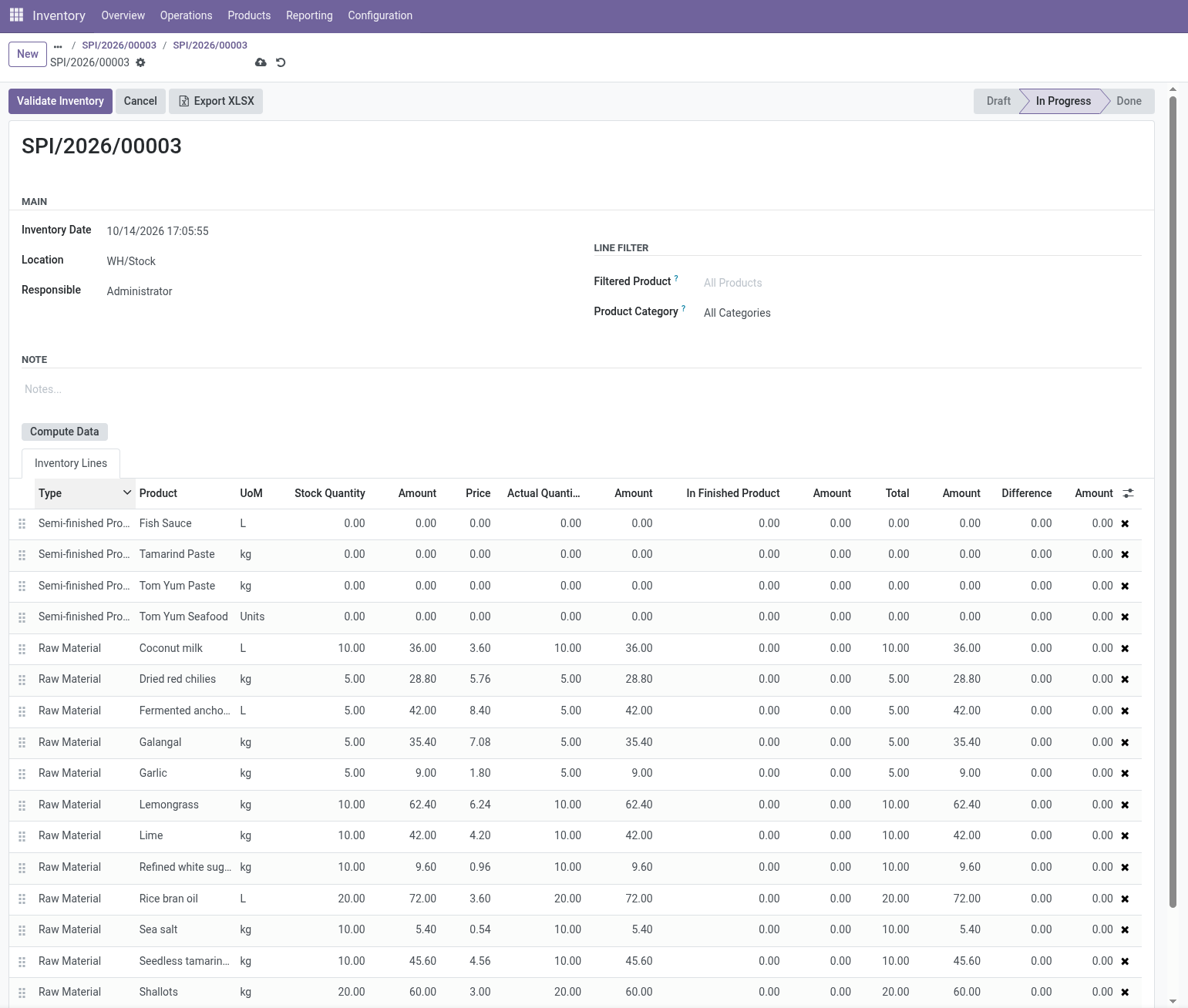
Color-Coded Variances
See at a glance which components are short and which are in surplus. On validation, kits keep zero stock and only the components are adjusted.
Stock After the Count
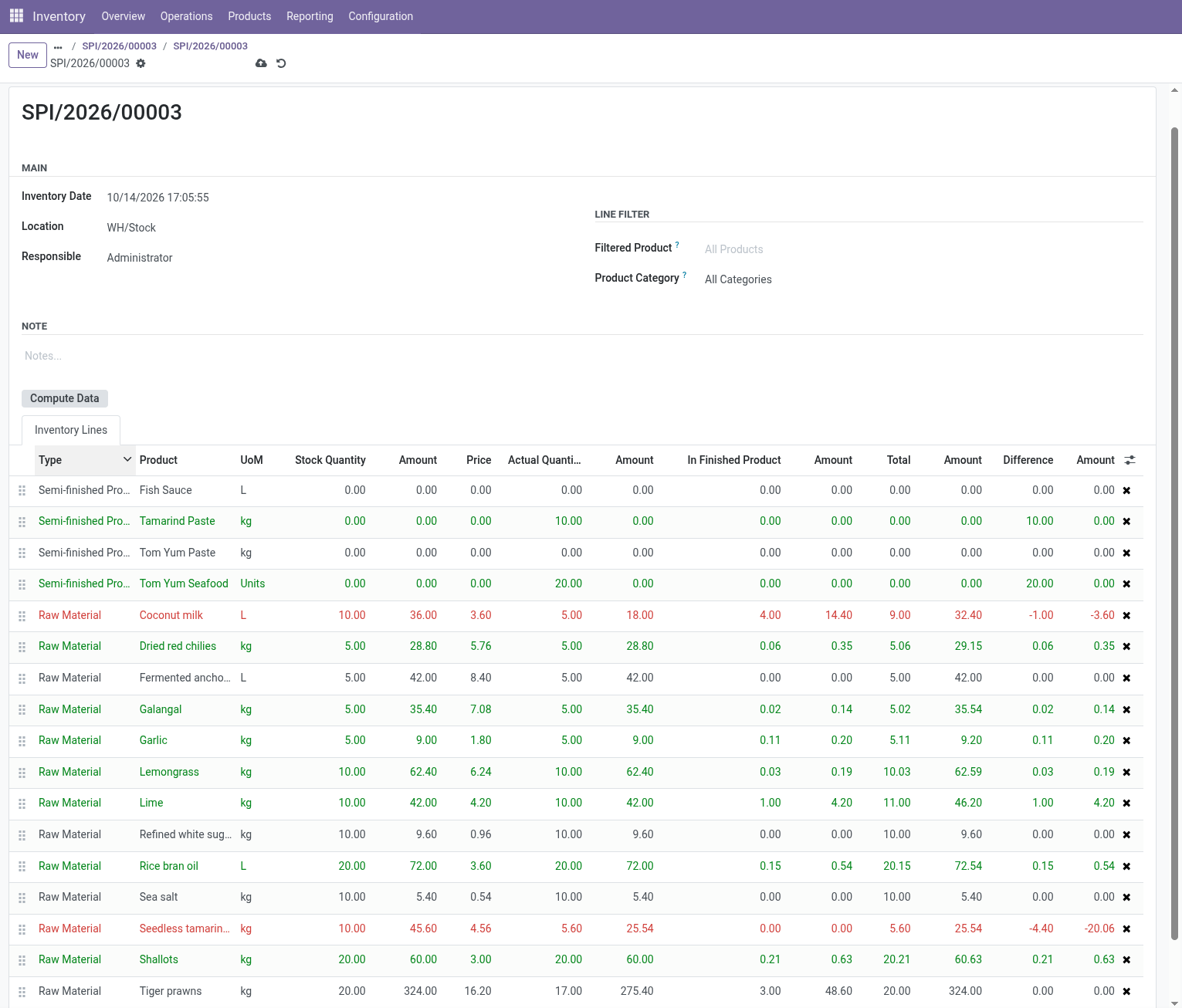
The counted kits are entered (20 portions of Tom Yum Seafood). Their components appear in In Finished Product, are added to the shelf count, and the Difference shows the real surplus or shortage before validation.
Why It Matters: Tiger Prawns
Book stock is 20.00 kg, but only 17.00 kg are found on the shelves. The missing 3.00 kg are not lost: they are inside the 20 soups (20 × 0.15 kg).
| Standard Odoo | This module | |
|---|---|---|
| Book stock | 20.00 kg | 20.00 kg |
| On the shelves | 17.00 kg | 17.00 kg |
| Inside 20 soups | not visible | + 3.00 kg |
| Difference | −3.00 kg −48.60 value |
0.00 |
Standard Odoo would write off 3.00 kg as a shortage. The module shows there is nothing to adjust.
How It Works: Shallots in Nested Kits
- Kit Explosion: 20 soups × 0.03 kg = 0.60 kg of paste; 0.60 kg × 0.35 kg = 0.21 kg of shallots inside the dishes.
- Total Quantity: 20.00 kg on the shelves (Actual Quantity) + 0.21 kg inside the dishes (In Finished Product) = 20.21 kg Total.
- Difference: 20.21 kg Total − 20.00 kg Stock Quantity = +0.21 kg. Only this real variance is posted to stock, without fake finished goods.
Surplus (Green)
The Total is higher than book stock, for example when components are found inside prepared dishes.
Shortage (Red)
The Total is lower than book stock even after counting the kits: a real loss from waste, spoilage, or theft.
Pricing
Documentation & Support
User Manual
Step-by-step guide: setting up kit BoMs, running a count, reading variances, validating the inventory and exporting to XLSX.
Open User Manual (PDF)Need Help?
Questions about installation, configuration or your kit BoMs? Write to us and include your Odoo version and a short description of the case.
Адрес электронной почты защищен от спам-ботов. Для просмотра адреса в вашем браузере должен быть включен Javascript.